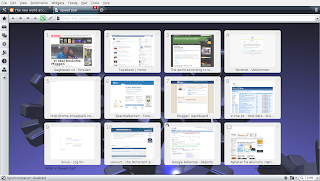
 Updated 2 September 2008:
To change the background of the Speed Dial tab in Opera 9.50, you need to do the following:
- Go to Tools --> Appearance --> Skin to find out which skin you are using. If it says Opera Standard, you are using the default skin, otherwise, you are using a downloaded skin. Note the name of the skin.
- As root, open the zip-file containing the Opera skin that you are using. The default skin can be found at /usr/share/opera/skin/standard_skin.zip, while downloaded skins can be found at /home/username/.opera/skin/*.zip. You can use the following command in a terminal:
sudo gnome-open /usr/share/opera/skin/standard_skin.zip
- Open the folder /backgrounds in the zip-file by double-clicking it.
- Open a file browser (Nautilus) and locate a background image that you want to use, e.g., /usr/share/wallpapers/triplegears.jpg.
- Add the background image (triplegears.jpg) to the /backgrounds folder by pressing the Add Files... button and locating the image.
- Open skin.ini from the zip-file and scroll down, or use Ctrl+F, to go to the line containing
[Speed Dial Widget Skin]
Underneath this heading, add Type = BoxTile
Tile Center = backgrounds/triplegears.jpg
- Save skin.ini inside the zip-file, click "yes" to update the archive, and restart the browser.
Note that your newly installed background image for the Speed Dial tab may be affected by the current color scheme. In my case, the background image became very bluish because the color scheme was set to system colors. To avoid this, go to Appearance (Shift+F12) and make sure Color Scheme is set to No color scheme.
Some screenshots:
1. Determine the skin you are currently using:

2. The zip-file containing the skin:

3. The /backgrounds folder in the zip-file (note Add Files button):

4. Locating a suitable background image using Nautilus:

5. Click Add Files in the /backgrounds folder (see 3. above) and add the background image:
 6. Edit the file skin.ini to use the background image by adding the two lines in blue:

7. Save skin.ini and click "Yes" to update archive: