Changing keyboard shortcuts in Ubuntu is fairly easy. First, check a rather limited list of commands by opening System -> Preferences -> Keyboard Shortcuts. If the task you want to assign a keyboard shortcut to is listed, simply change or assign a desired shortcut to the task and you are done. However, if you are like me, it is likely that your desired task (application, script, etc.) is not listed. In this case, you can use the Gnome Configuration Editor.
Let us change the default behaviour of Ctrl+Alt+Delete to open up the System Monitor instead of displaying the logout screen:If you are running Compiz Fusion as your window manager, it may be that you must use the CompizConfig Settings Manager (CCSM) to change the keyboard shortcut. This method is even simpler:
- Open Keyboard Shortcuts, go to Desktop, and change Log out from Ctrl+Alt+Delete to something else, for example Ctrl+Alt+Home.
- Press Alt+F2 and run gconf-editor.
- Maneuver to apps -> metacity -> keybinding_commands.
- Doubleclick a command key, for example command_1, and enter the command gnome-system-monitor. The full path may be necessary for a script or or other command (e.g., /home/username/myscript.sh).
- Maneuver to apps -> metacity -> global_keybindings.
- Doubleclick the run key corresponding to the command key in step 4, i.e., run_command_1, and enter the desired keyboard shortcut,
. Delete After completing the procedure above, Ctrl+Alt+Delete will now open the System Monitor, while Ctrl+Alt+Home will show the logout screen.
- Go to System -> Preferences -> Advanced Desktop Effects Settings and select the Commands tab under General Options.
- Select the Commands arrow button and enter gnome-system-monitor in a command line, for example command line 0.
- Select the Key bindings arrow button and click the button corresponding to the same run command, i.e., Run command 0. Enable it and enter the desired shortcut key combination.
Showing posts with label fusion. Show all posts
Showing posts with label fusion. Show all posts
Thursday, June 26, 2008
Assigning keyboard shortcuts in Ubuntu


Black or blue screen during video playback with Compiz Fusion 3D cube enabled
When running Compiz Fusion as the window manager in Ubuntu and having the 3D cube enabled, there is a known bug in the Ubuntu distros that can cause video playback to only display a black or blue screen (the sound is fine). Apparently, the bug has to do with a conflict relating to the video output driver xv. Compiz Fusion prevents the video application to use the driver. A workaround is to change the video output driver of your video application, for example vlc, to x11. A procedure that worked for me is outlined below and was posted in the Compiz Fusion forum by user kevinmedina, who got his inspiration from Gremlinzzz, who posted a solution here.
Procedure:
GStreamer
(The default video player in Ubuntu, totem-gstreamer, and any video player that is based on the gstreamer backend)VLC
- Open a terminal and type "gstreamer-properties". Press Enter.
- Click the Video tab.
- Under Default Video Plugin select "X Window System (No Xv)".
- Click Test to verify that video playback is working (you should be able to see the standard TV testing colour stripes).
- Click Close
(VLC is not installed by default; you need to search in the package manager, then install)MPlayer
- Start VLC and click on Settings, then Preferences.
- Expand Video and then expand Output modules. You will notice several options for output device.
- Select the item Output modules, and notice the checkbox at the bottom right that says Advanced options. Check the box, and now you have the option to select a different output device.
- Pick X11 video output
- Click on Save and you are set!
(Mplayer is not installed by default)Xine
- Start Mplayer
- Right-click on the screen and select Preferences
- Select the Video tab and under Available Drivers select "X11 (XImage/Shm)"
- Click Save and restart the program for the setting to take effect.
- Some users reported that MPlayer may not be able to show videos in full screen.
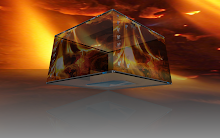
A screenshot of the 3D cube with working video ("One night in Paris") is shown below:
- Start xine
- Click File, then Configure and then Preferences
- In experience_level select "Master Of The Known Universe" so that all available settings are visible.
- Select the tab for video.
- Under Driver select "xshm".
- Restart xine.
- The same process enables Totem that has the totem-xine backend configured.

Subscribe to:
Posts (Atom)